Creating a bitmap icon for one of your own components is not explained in the Help documentation.
In fact Help confuses things in the Creating a New Component topic by mentioning how to specify the application icon.
The only post I could find on the internet that describes the process clearly is by Francois Piette at this link, http://francois-piette.blogspot.be/2014/02/howto-create-dcr-file-for-your-delphi.html .
Saturday, 18 April 2015

Monday, 23 March 2015
Classic style theme for Metasequoia 4
A Japanese user has uploaded themes for Metasequoia 4 that recreate the style of Metasequoia 3 (top image) and the Japanese paint program SAI Paint (bottom image).
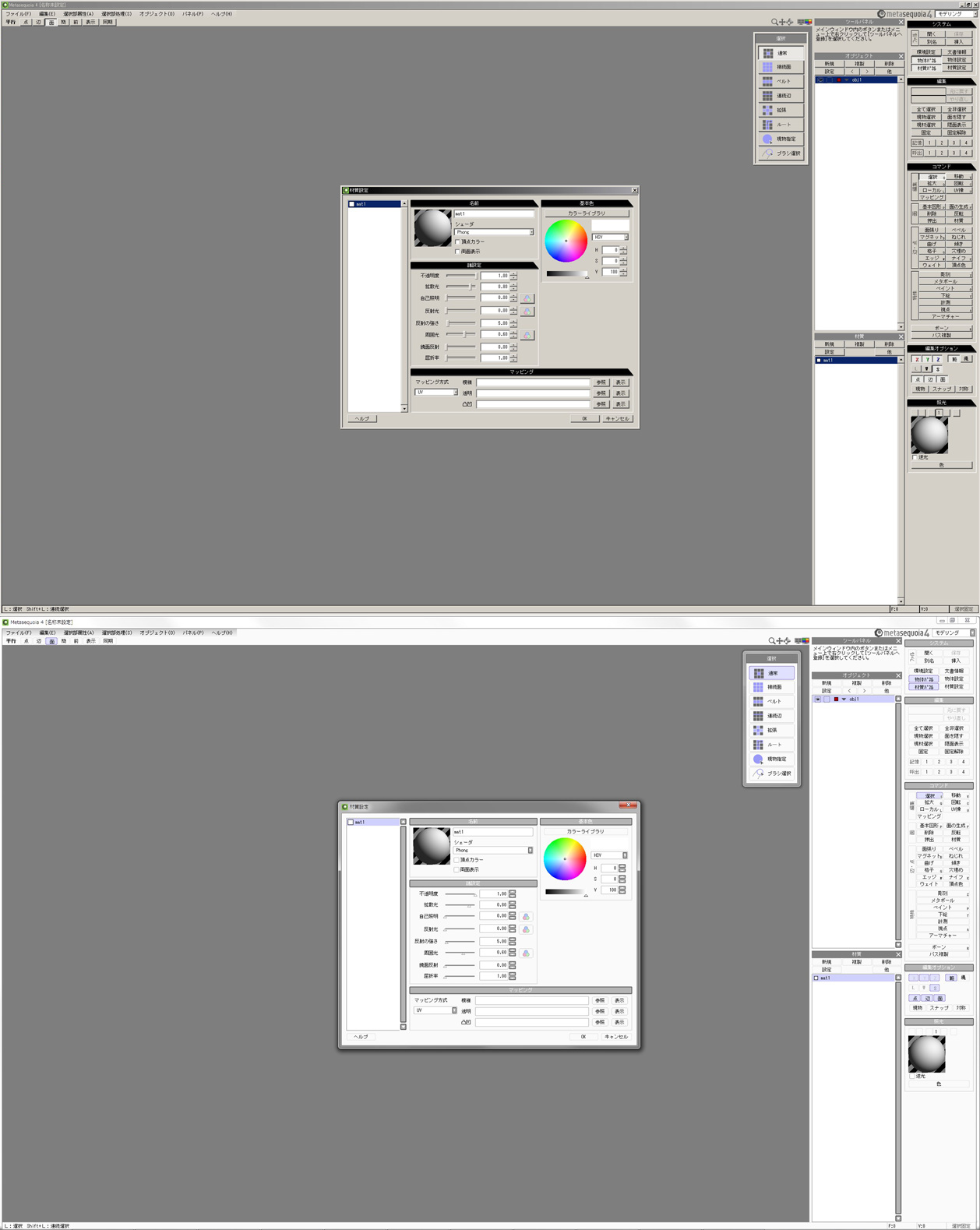
Classic Theme
Links and screenshot obtained from Metasequoia BBS post [5447].
Classic Theme
- https://bowlroll.net/file/66483 (Japanese website)
- https://bowlroll.net/file/66468 (Japanese website)
Links and screenshot obtained from Metasequoia BBS post [5447].
Thursday, 5 March 2015
Building TRueView in Visual Studio 2013
TRueView is a level viewer for Tomb Raider level files, *.PHD (TR1), *.TR2 (TR2/TR3) and *.TR4 (TR4).

It was written by Dr Yuri Zhivago and the C source code was released in 2000.
The program and its source code can be downloaded from, http://www.tnlc.com/eep/tr/utils.html .
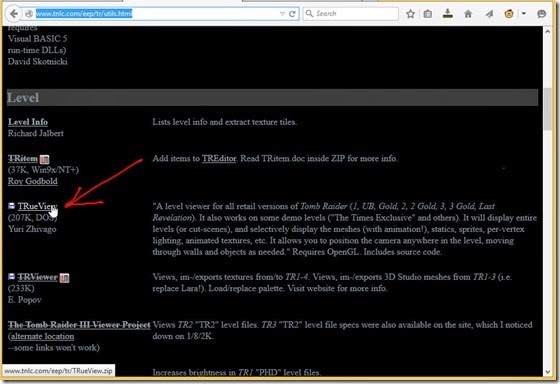
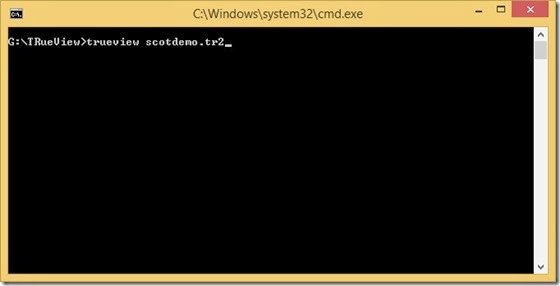
To execute the program you either drag and drop a Tomb Raider level file onto TRueView.exe in windows explorer or run the program from a command prompt with a level file name or full path as an argument.

See the readme included with the download for further instructions.

It was written by Dr Yuri Zhivago and the C source code was released in 2000.
The program and its source code can be downloaded from, http://www.tnlc.com/eep/tr/utils.html .

To execute the program you either drag and drop a Tomb Raider level file onto TRueView.exe in windows explorer or run the program from a command prompt with a level file name or full path as an argument.


See the readme included with the download for further instructions.
Monday, 16 February 2015
Metasequoia 4 Plugins – part 6
I installed the latest Metasequoia (version 4.4.0) using the default path and it was installed in Program Files.
I changed the paths in the Project Property Pages for Debugging>Command and Build Events>Post-Build Event>Command Line accordingly.
The Post-Build Event>Command Line I used to copy the DLL to the Plugins folder now failed because of User Account Control (UAC) which requires administrator rights to copy to folders in Program Files.
I now use the following Command Line which uses Windows PowerShell to open another Windows PowerShell console with administrator rights and copy the DLL to the Plugins folder.
powershell.exe "Start-Process powershell.exe -verb runAs -windowstyle Hidden –ArgumentList 'cp $(TargetPath) ''$(ProgramFiles)\tetraface\Metasequoia4\Plugins\Station'''"
There are two single quotes surrounding $(ProgramFiles)\tetraface\Metasequoia4\Plugins\Station because of the space in “Program Files”.
UPDATE: May2015
I discovered I don't need administrator rights because in Windows 8.1 you should copy the plugins to the corresponding plugin type folders located at "C:\Users\<username>\AppData\Roaming\tetraface\Metasequoia4\Plugins\".
Create the folders if they do not exist first.
I changed the paths in the Project Property Pages for Debugging>Command and Build Events>Post-Build Event>Command Line accordingly.
The Post-Build Event>Command Line I used to copy the DLL to the Plugins folder now failed because of User Account Control (UAC) which requires administrator rights to copy to folders in Program Files.
I now use the following Command Line which uses Windows PowerShell to open another Windows PowerShell console with administrator rights and copy the DLL to the Plugins folder.
powershell.exe "Start-Process powershell.exe -verb runAs -windowstyle Hidden –ArgumentList 'cp $(TargetPath) ''$(ProgramFiles)\tetraface\Metasequoia4\Plugins\Station'''"
There are two single quotes surrounding $(ProgramFiles)\tetraface\Metasequoia4\Plugins\Station because of the space in “Program Files”.
UPDATE: May2015
I discovered I don't need administrator rights because in Windows 8.1 you should copy the plugins to the corresponding plugin type folders located at "C:\Users\<username>\AppData\Roaming\tetraface\Metasequoia4\Plugins\".
Create the folders if they do not exist first.
Monday, 9 February 2015
Building WadExplorer in Delphi XE7 Starter
WadExplorer is a program written by IceBerg to investigate Tomb Raider Level Editor (TRLE) *.wad files.
Delphi XE7 Starter [link] is the latest low cost version of Delphi for hobbyists and beginners.
If purchasing Delphi Starter Edition be sure to purchase the Upgrade edition which is the cheapest.
You are eligible for the Upgrade version if you have any other IDE installed.
If you don’t have an IDE installed don’t worry the Delphi installer doesn’t check but if you want to be safe just download and install a free IDE like CodeBlocks or ZinjaI or Lazarus or Visual Studio Community Edition.
You could use the 30 day trial version of Delphi XE7 to build WadExplorer instead.
[UPDATE 26May2017: Delphi Starter is now free, see [link].]
Since WadExplorer was written in Delphi 7 it will probably need some changes to compile in Delphi XE7 so use Delphi 7 if you have it.
Delphi XE7 Starter [link] is the latest low cost version of Delphi for hobbyists and beginners.
If purchasing Delphi Starter Edition be sure to purchase the Upgrade edition which is the cheapest.
You are eligible for the Upgrade version if you have any other IDE installed.
If you don’t have an IDE installed don’t worry the Delphi installer doesn’t check but if you want to be safe just download and install a free IDE like CodeBlocks or ZinjaI or Lazarus or Visual Studio Community Edition.
You could use the 30 day trial version of Delphi XE7 to build WadExplorer instead.
[UPDATE 26May2017: Delphi Starter is now free, see [link].]
Since WadExplorer was written in Delphi 7 it will probably need some changes to compile in Delphi XE7 so use Delphi 7 if you have it.
Wednesday, 28 January 2015
Metasequoia 4 Plugins – part 5
We can create a project template to generate an empty Metasequoia plugin project with most of the project properties already set.
Once we have created the project template we can select it from the list of templates in the File>Add>New Project dialog.
This means we won’t have to set all the project’s properties manually every time we create a new plugin.
Once we have created the project template we can select it from the list of templates in the File>Add>New Project dialog.
This means we won’t have to set all the project’s properties manually every time we create a new plugin.
Friday, 23 January 2015
Metasequoia 4 Plugins – part 4
This time we will create an Import plugin.
I will not use the class technique for creating the plugin.
I wrote a Metasequoia Python script [link] to import MilkShape 3D *.ms3d files and will write a plugin to do the same.
Plugins have access to more of Metasequoia’s inbuilt functions than scripts.
MilkShape 3D released a *.ms3d viewer with C++ source code [link].
We will use the *.ms3d file loading code from the viewer in our plugin to read the *.ms3d file so download msViewer2.zip and extract it somewhere.
I will not use the class technique for creating the plugin.
I wrote a Metasequoia Python script [link] to import MilkShape 3D *.ms3d files and will write a plugin to do the same.
Plugins have access to more of Metasequoia’s inbuilt functions than scripts.
MilkShape 3D released a *.ms3d viewer with C++ source code [link].
We will use the *.ms3d file loading code from the viewer in our plugin to read the *.ms3d file so download msViewer2.zip and extract it somewhere.
Subscribe to:
Posts (Atom)