The instructions for the Japanese programs I download often appear as gibberish (lots of question marks or other unusual symbols) when I open them in a text editor on my PC.
This happens because the text has been decoded using a different character encoding than was used to write the text.
The Japanese call this Mojibake.
Saturday, 31 May 2014

Thursday, 29 May 2014
Learning fragMOTION part 2
I have found a simpler way to texture a model and to demonstrate I will use an *.ms3d file exported from Fexanim this time.
<Edit 17Sep14>
TurboPascal has updated Fexanim to include the material information in the *.ms3d file so the texture will now be assigned automatically when the *.ms3d is opened in fragMOTION.
TurboPascal also fixed the bugs that caused the UV map errors and the joining of the vertices in the upper leg meshes.
http://www.dxtre3d.com/temp/fexanim.rar
</Edit>
Open the model in fragMOTION and click the Texture pane tab.
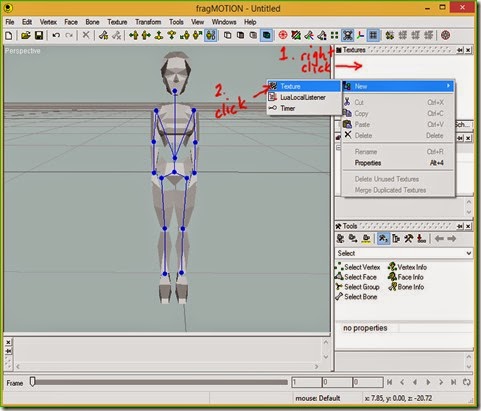
Right click in the Texture pane and click New>Texture from the context menu.
<Edit 17Sep14>
TurboPascal has updated Fexanim to include the material information in the *.ms3d file so the texture will now be assigned automatically when the *.ms3d is opened in fragMOTION.
TurboPascal also fixed the bugs that caused the UV map errors and the joining of the vertices in the upper leg meshes.
http://www.dxtre3d.com/temp/fexanim.rar
</Edit>
Open the model in fragMOTION and click the Texture pane tab.
Right click in the Texture pane and click New>Texture from the context menu.

Tuesday, 27 May 2014
Learning fragMOTION part 1
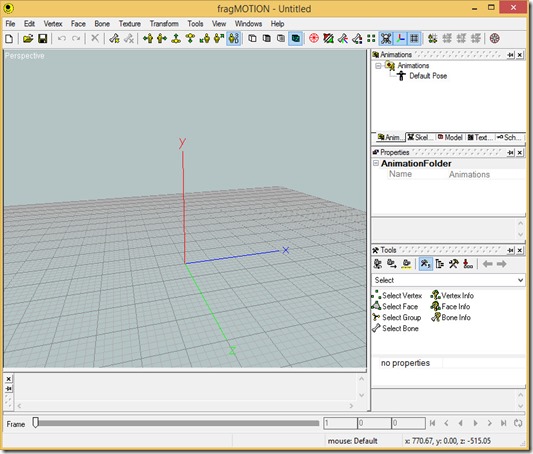
fragMOTION is a 3D modelling and animating program. [link]
It is not freeware but you can use the fully featured trial indefinitely by obtaining a seven day license every seven days.
The seven day license is obtained by typing a version of the Christian Lord’s prayer into the program when prompted.
Note I had to use a compatibility mode for the program not to give me a “trial has expired” warning and making the program close to unusable even though I had typed in the prayer. I don’t know if I did something wrong or if the program has a problem with Windows 8.1.
(Since I installed it in Program Files I needed to run it as administrator to have the trial work properly.)
<Edit 10AUG18> Here is a program (CoreMotion) that will type automatically the prayer. I didn't write it so make sure to check with anti-virus programs. <link>
</Edit>
It is not freeware but you can use the fully featured trial indefinitely by obtaining a seven day license every seven days.
The seven day license is obtained by typing a version of the Christian Lord’s prayer into the program when prompted.
Note I had to use a compatibility mode for the program not to give me a “trial has expired” warning and making the program close to unusable even though I had typed in the prayer. I don’t know if I did something wrong or if the program has a problem with Windows 8.1.
(Since I installed it in Program Files I needed to run it as administrator to have the trial work properly.)
<Edit 10AUG18> Here is a program (CoreMotion) that will type automatically the prayer. I didn't write it so make sure to check with anti-virus programs. <link>
</Edit>

Metasequoia Script – integer vertex coordinates
The registered version of Metasequoia allows scripting in the Python language.
This article will demonstrate a script to move all vertices (also known as points) in an object to integer coordinates.
An integer is a whole number like 1, 2, 3, 40, 75 etc.
A trial license for Metasequoia 4 is easy to obtain and unlocks all features for a limited time including the Script Editor. [link]
This article will demonstrate a script to move all vertices (also known as points) in an object to integer coordinates.
An integer is a whole number like 1, 2, 3, 40, 75 etc.
A trial license for Metasequoia 4 is easy to obtain and unlocks all features for a limited time including the Script Editor. [link]
Friday, 16 May 2014
Animating with Mikoto – part 6
We have rigged our model ready for animating in Mikoto.
I’m not very good at animating so how did I create the animation seen in part 1?
Mikoto can open *.bvh files which store motion capture data.
UPDATE: Mikoto cannot open *.bvh files which have values written in scientific format e.g. -8.759e-005.
In Mikoto’s Sample folder you will find dance01.bvh which is the file I used to animate Lara.
Click New in Mikoto to start a new project and then open dance01.bvh.
A new actor object named dance01.bvh is added to the project.
Each actor object is indicated in the tree with a cyan coloured cube icon.
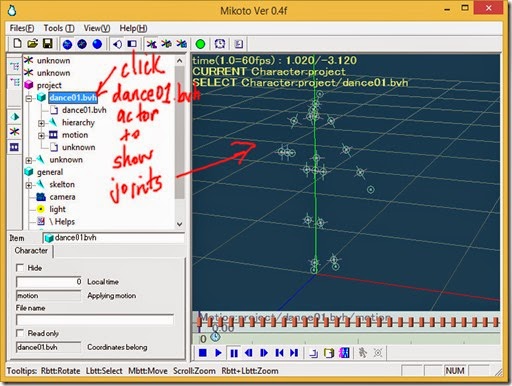
Select dance01.bvh by clicking on its name.
The hierarchy for a *.bvh file is displayed as circles containing small XYZ axes instead of bones.
I’m not very good at animating so how did I create the animation seen in part 1?
Mikoto can open *.bvh files which store motion capture data.
UPDATE: Mikoto cannot open *.bvh files which have values written in scientific format e.g. -8.759e-005.
In Mikoto’s Sample folder you will find dance01.bvh which is the file I used to animate Lara.
Click New in Mikoto to start a new project and then open dance01.bvh.
A new actor object named dance01.bvh is added to the project.
Each actor object is indicated in the tree with a cyan coloured cube icon.

Select dance01.bvh by clicking on its name.
The hierarchy for a *.bvh file is displayed as circles containing small XYZ axes instead of bones.

Wednesday, 14 May 2014
Animating with Mikoto – part 5
For my character I will use the Lara Croft model from a Tomb Raider Level Editor (TRLE) *.wad file.
The post http://sappersblog.blogspot.com/ tells where to obtain TRLE or *.wad files if you don’t have them.
Open the *.wad file in version 1.4 of my EditWad program.
Information about EditWad can be found at http://www.tombraiderforums.com/.
EditWad can also be downloaded from http://www.trsearch.org/Tools/25/.
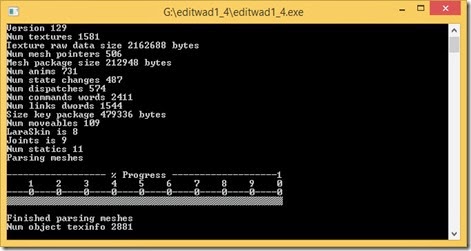
EditWad has a console window and a GUI window. The console window only displays information.
All interaction is with the GUI window.
Click on the slider and drag it to the far right until the number on the top right blue button is “7”.
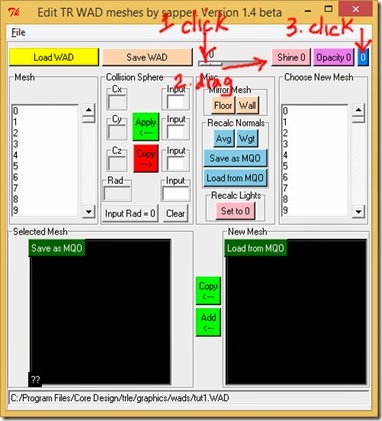
Click the blue button with the “7” on it to bring up the save dialog and save the *.mqo file.
Close EditWad as it is no longer needed.
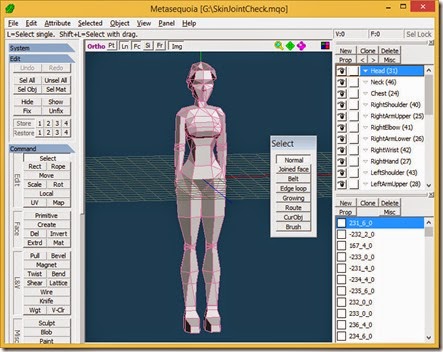
Open the file you saved in Metasequoia.
Note that meshes are exported from EditWad at 1:1 scale and meshes in TRLE *.wad files are big.
You may need to change the Distance setting in Field of view by clicking View>Set View.
The post http://sappersblog.blogspot.com/ tells where to obtain TRLE or *.wad files if you don’t have them.
Open the *.wad file in version 1.4 of my EditWad program.
Information about EditWad can be found at http://www.tombraiderforums.com/.
EditWad can also be downloaded from http://www.trsearch.org/Tools/25/.
EditWad has a console window and a GUI window. The console window only displays information.

All interaction is with the GUI window.
Click on the slider and drag it to the far right until the number on the top right blue button is “7”.

Click the blue button with the “7” on it to bring up the save dialog and save the *.mqo file.
Close EditWad as it is no longer needed.
Open the file you saved in Metasequoia.
Note that meshes are exported from EditWad at 1:1 scale and meshes in TRLE *.wad files are big.
You may need to change the Distance setting in Field of view by clicking View>Set View.

Tuesday, 13 May 2014
Animating with Mikoto – part 4
You can also connect triangles in Metasequoia root to root.
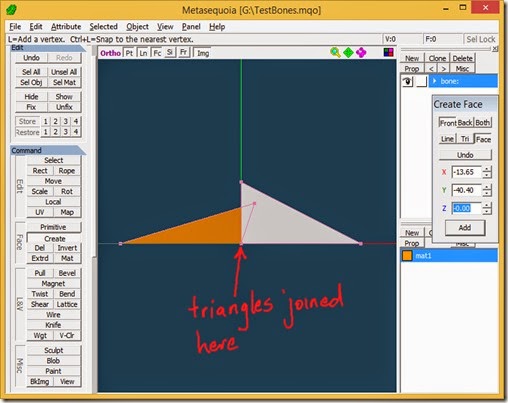
You will see this type of connection in many humanoid character models so that the lower half of the body can be rotated independently of the top half and vice versa.
The root-root connection is the end of the IK chain for both halves of the body and can be translated.
An example can be found in lowbody_sdef.mqo located in the Sample folder included with Mikoto.
This type of connection is only allowed once in the skeleton.

You will see this type of connection in many humanoid character models so that the lower half of the body can be rotated independently of the top half and vice versa.
The root-root connection is the end of the IK chain for both halves of the body and can be translated.
An example can be found in lowbody_sdef.mqo located in the Sample folder included with Mikoto.
This type of connection is only allowed once in the skeleton.
Subscribe to:
Posts (Atom)